Report Chat uses Displayr AI to answer viewers' questions about your published report (aka dashboard). Viewers can ask questions directly in View Mode and get practical answers linked to outputs in your report, enabling them to quickly turn your analysis into action. Report Chat saves the day when viewers:
- are low on time and have an ad hoc question that needs to be answered NOW.
- want to quickly find the analysis they are looking for within your report.
- need more detailed explanation about an output.
- want to see what they "need to know" from the report.
- want to "find the story" across different analyses.
- want a concise summary of the insights for a particular brand in a larger study.
- and more....
This article contains the following sections:
- How Report Chat works
- How to enable and disable Report Chat
- Examples
- Technical details
- Frequently asked questions
Requirements
- Displayr AI must be enabled: Opting In and Out of Displayr AI
- You must have AI tokens available on your account under Account Settings > Licenses > AI Usage, see Tracking Your Displayr AI Usage for more details.
How Report Chat works
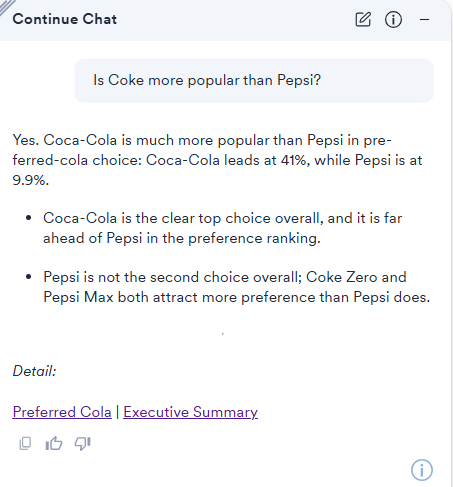
Report Chat reviews all published Pages and outputs in your Report and uses those, along with general AI knowledge, to answer your question. Currently, the information available to it is only the visible items in the Report. Items that are used to answer your question are referenced by clickable links at the bottom of the response. See Asking a general question about the report below. There are things to keep in mind when setting up your document that will make it easier for Report Chat to find answers, see the Examples section below.
When Report Chat cannot find the answer to your question in the report, it will show a message like below or you can create a custom message (see the Questions that Report Chat can't answer section below).
Notably, Report Chat cannot currently:
- Answer questions based on tables created in Explore Mode.
- Create new analyses/outputs or change current outputs (including filtering, see Questions that incorporate filtering below for more detail).
Enable or disable Report Chat
Report Chat can be turned on/off on a document-level basis. By default, Report Chat is enabled when you publish a document. If your document was published before 18 March 2026, you will need to enable Report Chat manually.
To disable/reenable Report Chat:
In Edit mode, go to Share > Publish to Web.
Click Advanced Options.
Check or uncheck the Chat Panel for natural language queries checkbox.
Click Publish (or Republish if already published).
See How to Publish a Document as a Web Page (Dashboard) for more details on publishing your dashboard.
Examples
Below are some examples of questions that viewers might ask the Report Chat about a report. These come from the following example: Cola Study dashboard.
Asking a general question about the report
Viewers who are short on time may want to simply ask the Report Chat a question about the report rather than review the whole report to find the answer.
Explaining outputs
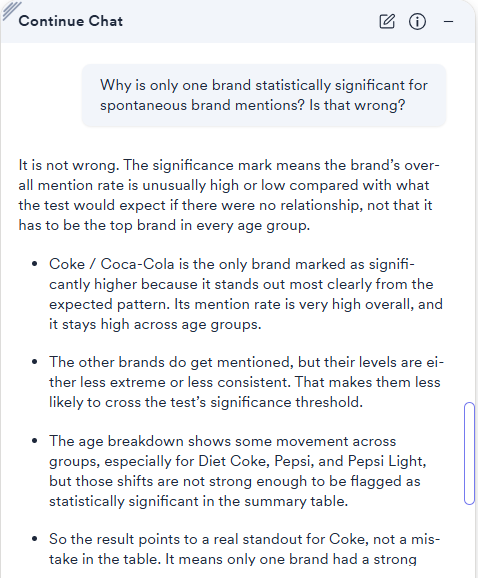
Viewers can ask the Report Chat to interpret an output for them. More impressively, Report Chat can also do this in the context of the wider analysis, per the "Open-ended and crosstab summaries confirm the same mechanism" bullet in the example below.
Viewers can also ask for more details about specific parts of the output. This is especially helpful when you may present more advanced analyses in your report.
Questions that incorporate filtering
Report Chat also takes into account any filtering done on outputs, including those that use an interactive combo box. However, these should be displayed on the same Page as the output being interpreted, so that it is clearer that the dropdown applies to the output shown on the Page.
Note that Report Chat isn't able to change the interactive filter itself to find an answer, so either 1) the viewer will need to change the filtering to what they are interested in, or 2) the analyst will need to provide a reference for the Report Chat to use, broken out by all the filters. See the example below of the crosstab showing results for each brand, which enables Report Chat to then compare preferred cola across brands.
Questions that Report Chat can't answer
If someone asks Report Chat a question that isn't about the data, such as "What's 2+2?", the chat will return a message indicating that the question can't be answered.
If you would like to customize the message that the chat returns, you can follow these steps:
- In Edit mode, go to Calculation
> Custom Code from the toolbar or the + menu in the Report tree.
-
Paste your custom message into the Code
panel. For example:
"For questions not covered here, please contact jane@company.com" - Click Calculate.
- From Properties
- Right-click the output and click Hide.
- If you've already published your document, go to Share > Republish to publish the change to your dashboard.
Feedback buttons
Chat shows thumbs-up and thumbs-down buttons, which you can click to provide feedback after each request.
Technical details
It is amazing what sorts of questions Report Chat can handle, but there are things to keep in mind when designing your dashboard.
- Any calculations or data transformations that you expect viewers to need for a question will need to be done ahead of publishing and presented somewhere in the report.
- That is, Report Chat cannot access Data Sources directly. It can only access outputs within the Report and not the Raw Data of any variables unless they are displayed in a Raw Data table.
- Similar to above, it cannot see hidden outputs.
- However, it does still have access to Captions on outputs, even if the captions are not shown.
- If viewers need to compare across different filters, these should be shown in the columns of a crosstab somewhere in the report.
- That is, Report Chat can't change Controls to update analysis for different filtering, see Questions that incorporate filtering above.
- It needs to be clear from the report which combo boxes (or other Controls) change which outputs.
-
Report Chat does not see how the dashboard links together under the hood, thus it can't confirm which combo boxes (or other Controls) affect which outputs. Since combo boxes can filter across pages, it is recommended that you either:
- Show the combo box doing the filtering on the same Page as the filtered outputs, or
- Make it clear, using commentary/text boxes, what things get filtered by the combo box.
-
Report Chat does not see how the dashboard links together under the hood, thus it can't confirm which combo boxes (or other Controls) affect which outputs. Since combo boxes can filter across pages, it is recommended that you either:
-
Report Chat answers questions using existing outputs in the document. Outputs with meaningful names produce significantly better answers than generic names.
- For example, an output named
NPS.by.Agewill get a better answer than one namedviz.4.
- For example, an output named
Frequently asked questions
Do you store the questions viewers have asked?
Viewer questions are never logged or tracked. No message content is stored.
Usage metrics are tracked: how many documents have the chat panel enabled, how many viewers use it, and whether viewers ask one question or multiple.
Does Report Chat use AI tokens?
Yes, AI tokens are consumed from the company/account pool, not the individual viewer's allowance. If the account's AI allowance is exhausted, viewers see: "AI Limit Reached — The AI allowance for this report has been used up. Please contact the report author for help."